
Interactive Dashboards with Shiny
Course Logistics
This lesson is called Course Logistics, part of the Interactive Dashboards with Shiny course. This lesson is called Course Logistics, part of the Interactive Dashboards with Shiny course.
Transcript
Click on the transcript to go to that point in the video. Please note that transcripts are auto generated and may contain minor inaccuracies.
Loading transcript...
Your Turn
In RStudio, first install the following packages with:
install.packages("remotes")
install.packages("shiny")
install.packages("fivethirtyeight")
install.packages("plotly")
install.packages("usethis")To download the course materials, you then run:
library(usethis) use_course("rfortherestofus/shiny-course")It will ask you if you want to download the course into a specific folder. If you don’t like that folder, you can specify a different location using the destdir argument. For example, if I wanted to install it into my Code/ folder in /Users/tedladeras/:
usethis::use_course("rfortherestofus/shiny-course", destdir="/Users/tedladeras/Code/")You’ll need to pick the option that means “yes” (the prompt is to make sure that you’re paying attention to the questions, the order is switched up every time.)
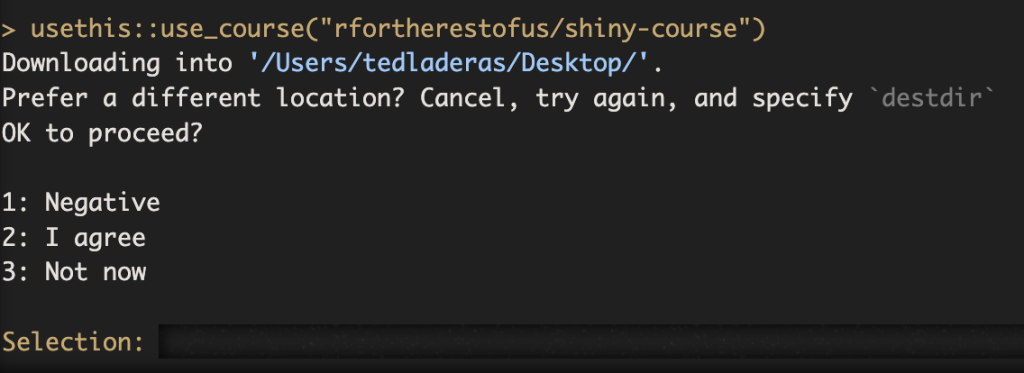
It will then ask you if you want to delete the Zip file. You don’t need this, so select the option that means “yes” again:
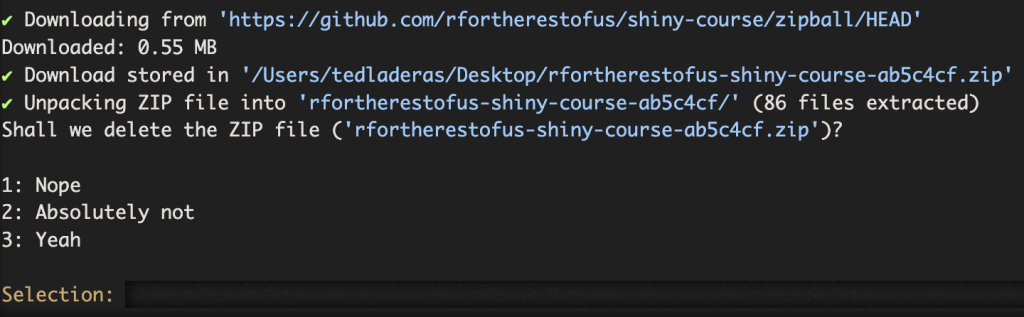
Now you should be ready for the course. Let’s do a quick check to make sure that we’re up and running:
library(shiny)
runApp("test_app")If everything is successful, you should see a window open up:
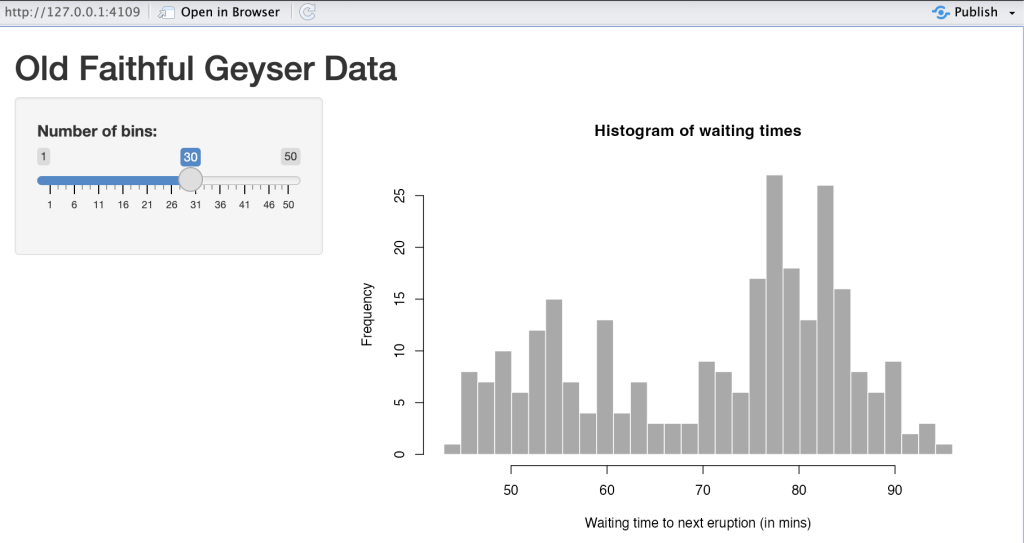
Confirm the app works by moving the slider, and then close the window. You should be all set up for the course.
Opening the Project Later
There are two ways to reopen the project. The first is to open the project selector in the top right of the RStudio window. There you can select the project (it will have a slightly different name - the last part will be different):
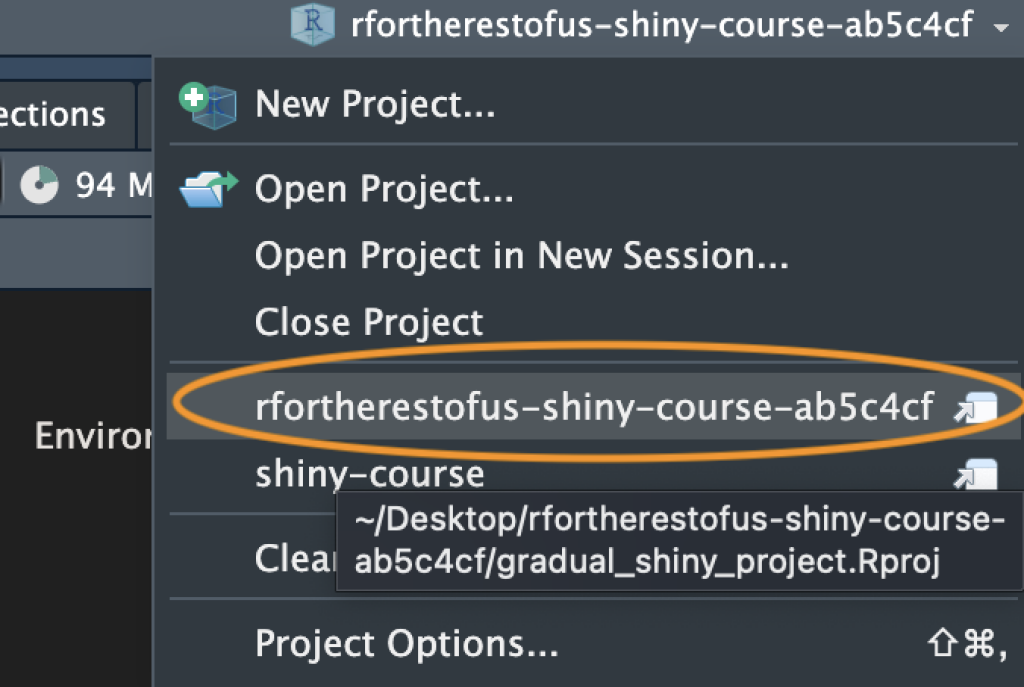
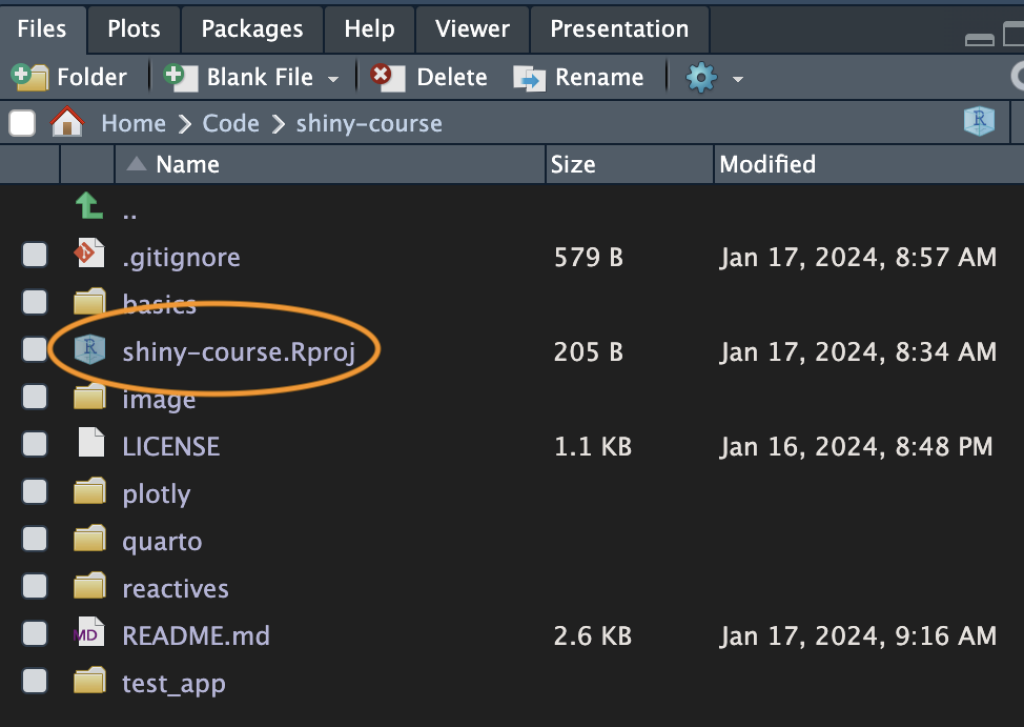
The other is to open the shiny-course.Rproj file in your file explorer or finder:
Resetting the course
In case you accidentally delete things, you can download a new copy with course materials using use_course() again. It will download a fresh copy as a new project. The old project will remain, with a new id:
library(usethis) use_course("rfortherestofus/shiny-course")
Organization of the Course Materials
There are four folders corresponding to the four parts of the course. In order, these are:
basics/ reactives/ plotly/ quarto/
When you watch the “Your Turn” section of the videos, you’ll open the corresponding assignment number in the corresponding folder (it will make more sense when you start watching the videos).
Sometimes the assignments will be about adding code to an existing shiny app, or thinking through a particular question.
Hope you enjoy the course!
Learn More
If you prefer, you can also get the installation instructions on GitHub
Have any questions? Put them below and we will help you out!
Course Content
26 Lessons
You need to be signed-in to comment on this post. Login.